
Omni AI Video Generator
Omni AI Video is the unified AI video generator that brings video, imagery, and sound under one roof. Start from a written idea or a quick template, and Omni AI Video turns it into a finished short clip without juggling a separate video tool, image tool, and sound app.
Try AI Video Generator
Explore the magic of AI
Next Step:
Text to Video & Image to Video
Credits = output duration x rate per second
| 480P | 720P | |
|---|---|---|
| Pro | 65 /s | 135 /s |
| Fast | 50 /s | 110 /s |
Omni Reference (with reference video)
Credits = (input video duration + output duration) x rate per second
| 480P | 720P | |
|---|---|---|
| Pro | 40 /s | 85 /s |
| Fast | 30 /s | 65 /s |
Omni Reference without reference video uses the standard rate above. Input video duration is rounded up to the nearest second.
One Unified Engine for Video, Image, and Sound
Omni AI Video is the all-in-one model that turns a single idea into a finished short video, with matching visuals, voice, and ambient sound generated together.
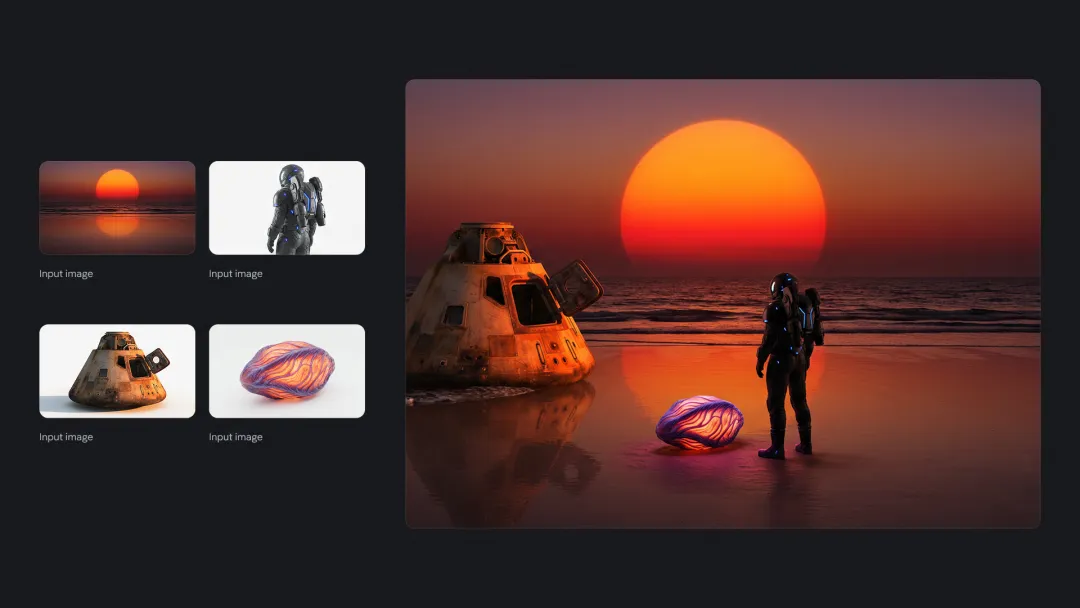
From a Single Idea to a Finished Short Video
Type a sentence or paste a script and Omni AI Video plans the shots, frames the scene, and renders smooth motion in one pass. There is no need to storyboard, generate a silent clip, then add sound on top. The unified Omni AI Video model handles every step internally and gives you a complete clip ready to publish.

Native Audio Baked Into Every Clip
Omni AI Video generates dialogue, music, and ambient sound at the same time as the picture, so lip movements and sound effects line up naturally. Describe the mood, like a rainy street, busy cafe, or slow piano, and the model fills in the soundscape. Skip the separate text-to-speech, sound design, and lip-sync tools.
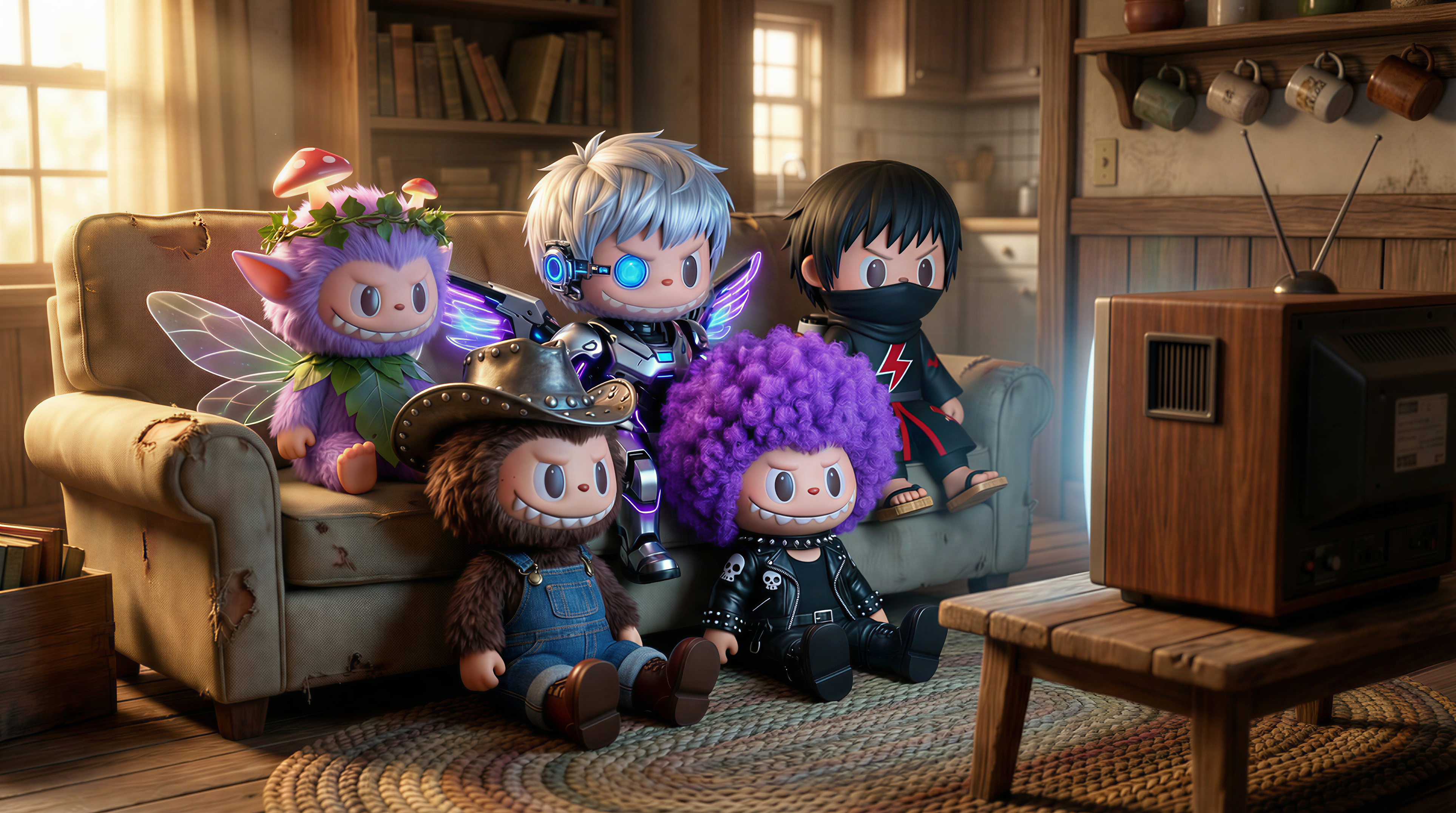
Three Input Modes for Any Starting Point
Begin with text, a still image, or a short reference clip. Omni AI Video reads each input and keeps the same character, style, and mood across the whole video. Perfect for animating product photos, extending an existing shot, or building a series with the same recurring character.
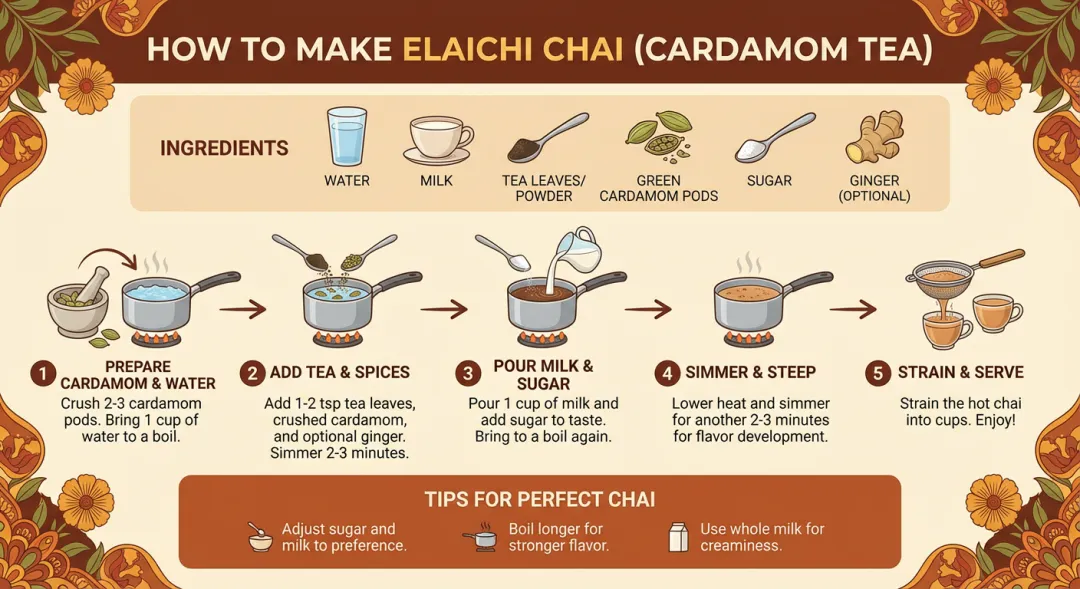
Stable 15-Second Clips in HD and Vertical Formats
Choose 5, 10, or 15 seconds at 720p or 1080p in either 16:9 or 9:16. While most generators drift after 5 to 7 seconds, Omni AI Video keeps faces, clothing, and motion consistent for the full 15 seconds. Output is delivered as a standard MP4 ready for any platform.
Why Creators Pick Omni AI Video
Concrete advantages that make Omni AI Video different from single-purpose video tools, and how the unified omni model changes the day-to-day for solo creators and small teams.
🎬 One Pass, Sound Already Mixed
Most AI tools give you a silent clip, then expect you to add voice, sound effects, and lip-sync separately. Omni AI Video generates picture and audio together, so your clip is ready to publish the moment it finishes.
🔊 Lip Movements That Match the Words
Because the omni model writes the visuals and the audio at the same moment, characters' mouths line up with what they say. No third-party lip-sync pass, no awkward delays between speech and motion.
⏱️ Steady Output for the Full 15 Seconds
Where many generators show face morphing or background drift after 6 seconds, Omni AI Video keeps the same person, outfit, and setting from the first frame to the fifteenth. Triple the usable runtime per generation.
🌍 Multi-Language Voiceovers Without Re-Shooting
Generate the same scene in different languages with natural mouth movements for each. Reach a global audience without hiring voice actors or recording multiple takes for every region.
🖼️ Three Inputs, One Consistent Style
Switch freely between text, a single image, or a short reference clip and Omni AI Video holds onto your character and look across all of them. Build a series with the same recurring character without retraining anything.
📱 Vertical and Widescreen From the Same Prompt
Render the same idea in 9:16 for Reels and TikTok, then re-render in 16:9 for YouTube, no need to crop or reshoot. Pick the aspect ratio at generation time and Omni AI Video adapts the framing.
Make a Complete Short Video in 3 Steps
From a blank prompt to a polished, sound-on clip with Omni AI Video, no editing skills required.
1. Pick Your Starting Point
Choose Text-to-Video to generate from a written idea, Image-to-Video to animate a single photo, or Reference-to-Video to keep a character consistent across multiple scenes. Each mode in Omni AI Video supports the same audio generation and HD output settings.
2. Describe the Scene and Adjust Settings
Write your prompt with the action, mood, and any spoken lines. Pick duration (5, 10, or 15 seconds), resolution (720p or 1080p), and aspect ratio (16:9 for YouTube or 9:16 for TikTok and Reels). Add a music style or background ambience description if you want a specific soundscape.
3. Generate and Download Your MP4
Click generate and Omni AI Video produces visuals, voice, and ambient audio together in one pass. The finished clip arrives as a standard MP4 with sound already mixed, drag it straight into a post or import it into your editor for further adjustments.
Omni AI Video FAQ
Common questions about Omni AI Video, including inputs, output formats, audio handling, and tips for better results.
What resolutions and aspect ratios does Omni AI Video support?
You can render at 720p HD or 1080p Full HD in either 16:9 (landscape) or 9:16 (portrait). The widescreen option fits YouTube and embedded site players, while vertical fits TikTok, Reels, and Shorts. The same prompt can be re-rendered in either aspect ratio without losing the original framing intent.
How long can a single Omni AI Video clip be?
Each generation produces a clip of 5, 10, or 15 seconds. Omni AI Video is tuned to stay coherent for the full 15 seconds, which is roughly twice the stable runtime of typical generators. For longer stories, generate several clips with the same reference image and stitch them in your editor.
Does Omni AI Video really generate audio together with the picture?
Yes. Voice, music, and ambient sound are produced inside the same model run as the visuals, which is what 'omni' refers to. You can describe the soundscape in plain language, like 'soft rain, distant traffic, calm narrator voice', and the model balances dialogue against background sound automatically.
Which input formats can I upload?
For Image-to-Video, upload a JPG, JPEG, PNG, or WebP up to 10MB. For Reference-to-Video, upload one or more MP4 clips up to 50MB total. Generated output is always delivered as a standard MP4 file with the audio track already embedded.
What kind of prompt works best with Omni AI Video?
Short, specific prompts work better than long abstract ones. Mention the subject, the action, the camera feel ('close-up', 'slow tracking shot'), and the mood. If you want spoken lines, put them in quotes; if you want a specific soundscape, name it explicitly. The model treats every prompt as a tiny screenplay.
Can I use Omni AI Video clips for commercial work?
Yes. Videos generated with Omni AI Video can be used in commercial projects including ads, product demos, social media campaigns, and client deliverables. You retain usage rights to the clips you generate, with no extra licensing fee for commercial release.